Sharing proposals
1 min de leitura
When a proposal is ready, click Share in the editor to send it to a client as a PDF, a Word document or a weblink, or to save it in your ATS.
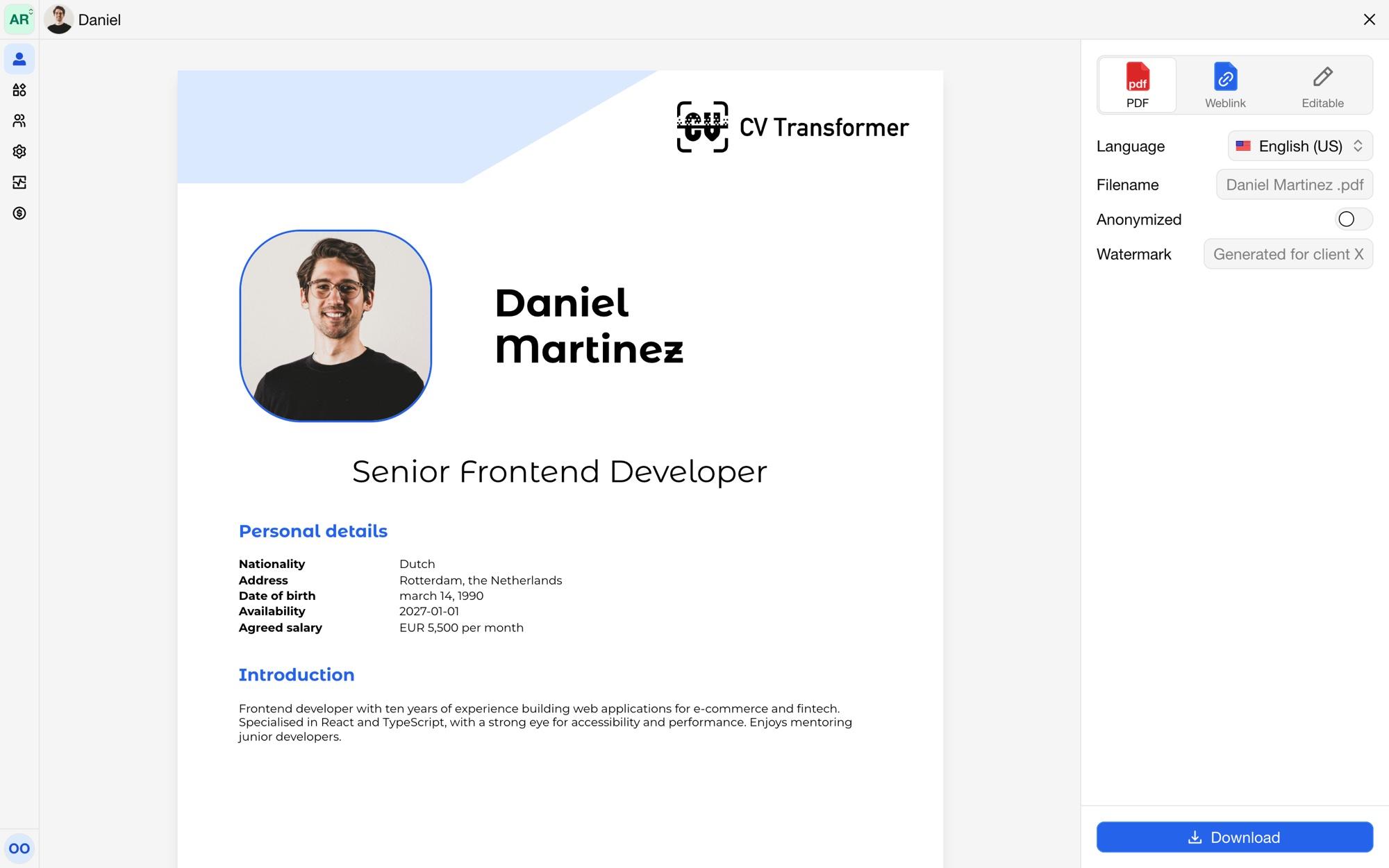
Share options
Choose how to share:
PDF: download the proposal as a PDF.
Word: download it as a Word document, when Word output is enabled for your organization.
Weblink: a link to the proposal as a web page. Opening it counts as a view in the Weblink views column of the candidate list.
Editable: a link to the editor for this candidate, for colleagues or an ATS (see Embedding). Anyone with this link can edit the candidate.
And set:
Anonymized: hides the candidate's personal details, as your layout defines them (see Anonymization). Anonymized and named proposals have different links.
Language: the language of the proposal, when the layout has more than one.
Filename (PDF and Word): the name of the downloaded file.
Title (weblink): the title the weblink shows.
Watermark (PDF): text shown across the pages, such as "Generated for client X".
Saving to your ATS
When the candidate is linked to your ATS, Save to your ATS attaches the PDF or Word document to the candidate there, with the filename you set.
Resetting weblinks
Reset weblinks replaces the candidate's weblinks, anonymized weblink and editable link with new ones. Every link you shared before stops working.
Only active candidates
A pending candidate has no proposal yet. Activate it first (see Adding candidates).