Layout editor
1 min de leitura
The layout editor is where you design a layout. Open it by clicking a layout on the Layouts page. Changes save automatically; undo and redo them with the arrows in the header.
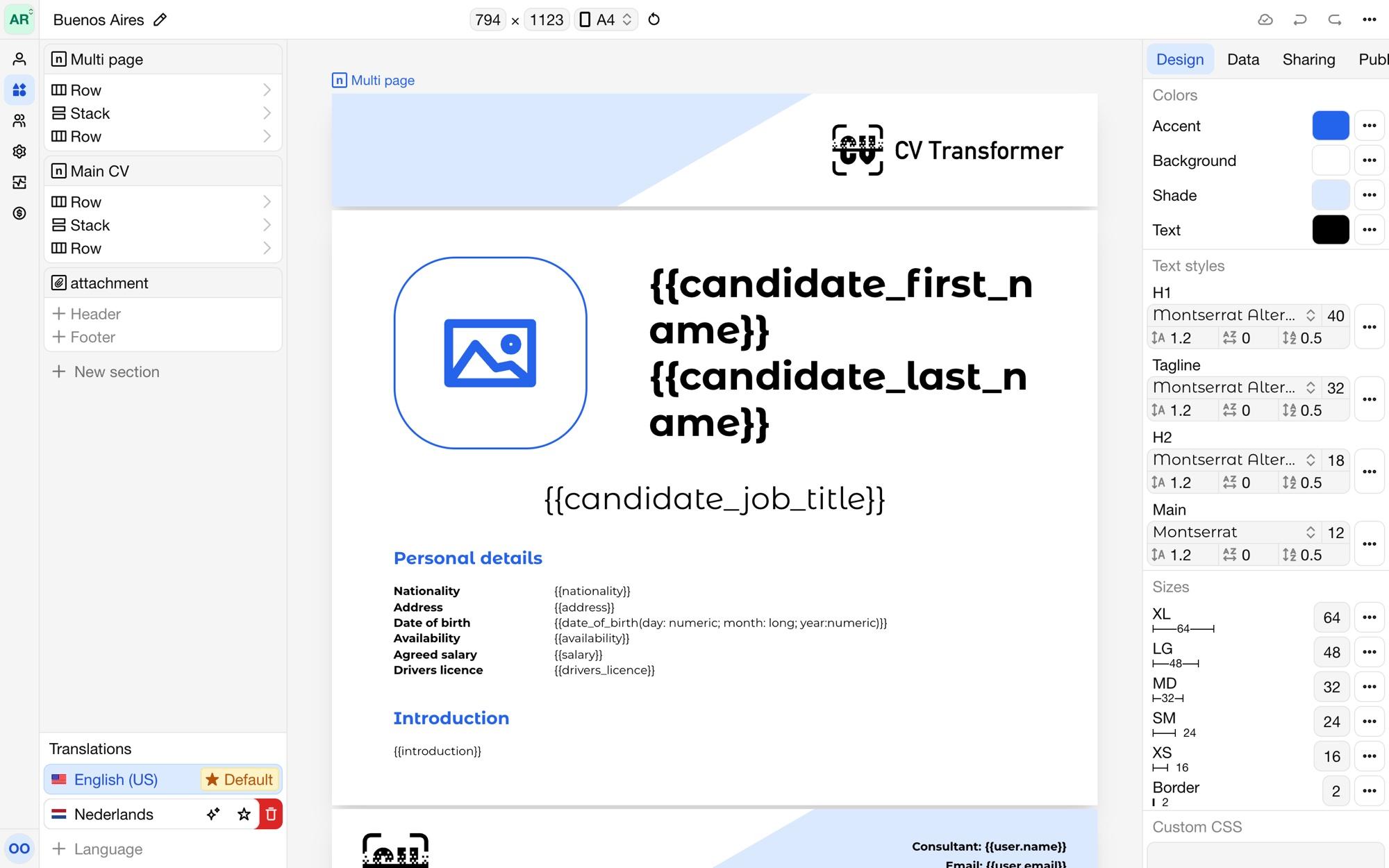
Parts of the editor
Header: the layout's name, the page size, undo and redo, and the layout's menu.
Tree: the structure of the layout, with its sections and the elements in them. Drag elements to move them.
Canvas: the layout with example content. Click an element to select it.
Sidebar: settings in five tabs:
Element: the selected element's type, layout, spacing, borders and visibility. See Building blocks and Conditional content.
Design: design tokens, fonts, images and custom CSS. See Styling.
Data: the layout's variables. See Variables.
Sharing: the PDF filename, the web version and instructions for colleagues. See Web version and PDF export.
Publishing: publishing the layout to the library. See Publishing layouts.
Page size
Choose the page size in the header: A4, US Letter, PowerPoint 16:9, PowerPoint 4:3, or a custom width and height.
Sections
A layout consists of sections, in the order they appear in the PDF. Add one with New section. There are three types:
Single page: one page with a fixed size, such as a cover page.
Multi page: a header, body and footer. The body continues over as many pages as its content needs, and every page repeats the header and footer.
Attachment: adds files to the PDF, such as your terms and conditions for every candidate, or files you choose per candidate.
Languages
A layout can have several languages, so the same layout makes proposals in each of them. See Translations.