Variables
2 min de lectura
Variables are the parts of a layout that differ per candidate, such as their name, summary and work experience. The AI fills them in from the candidate's attachments, and recruiters can change them in the candidate editor. Manage them in the Data tab of the layout editor.
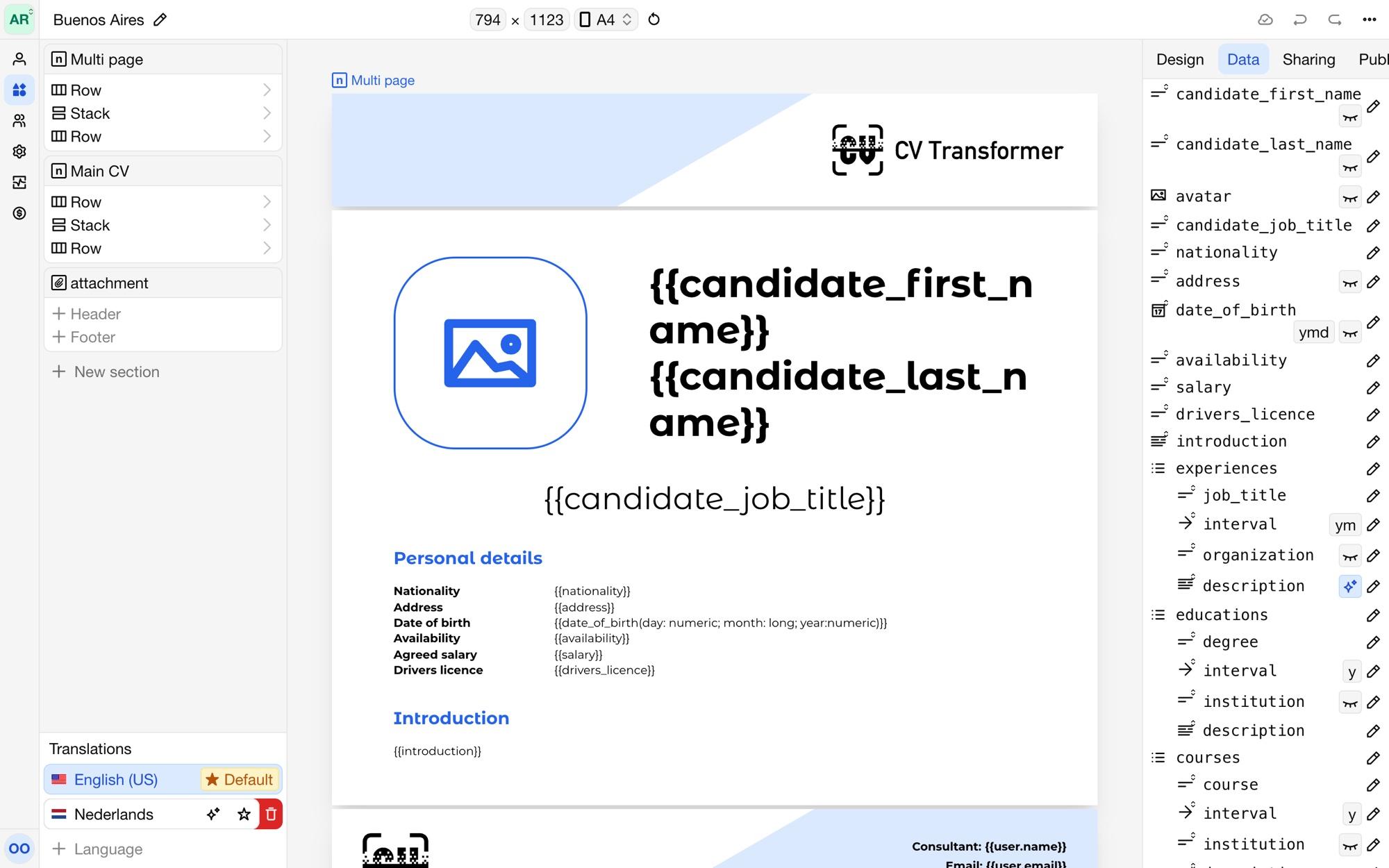
Using variables
Refer to a variable in a text element with its name between double braces, such as {{name}} or {{job_title}}. Dates can be formatted; see Date formatting.
Variable types
Inline text: a single line, such as a name or job title.
Text block: text with paragraphs and formatting, such as a summary.
Number: a number, with an optional minimum and maximum.
Date: a date, precise to the year, month or day.
Date range: a start and end date, where the end can be Present.
Multiple choice: one of the options you define, such as a level.
Image: an image, such as the candidate's photo.
Rating: a score, shown with a rating element.
List: a list of items, such as work experience. Each item is a variable itself, often an object.
Object: a group of variables, such as the title, company and period of one work experience.
Variable settings
Click a variable to change it:
Variable name: the name you use in the layout. Give variables clear, consistent names in
snake_case, such aswork_experience; the AI uses them to understand what goes where.Default value: shown when a candidate has no value.
Precision (dates): year; year and month; or year, month and day.
Options (multiple choice): the choices, in each language of the layout.
Required length (text and lists) and Limits (numbers): the editor warns when a value is too short, too long, too small or too large.
Visibility: Sensitive variables are hidden in the anonymized proposal. See Anonymization.
Include in AI response: turn this off for variables the AI shouldn't fill in, such as a field recruiters always fill in by hand. Add Custom AI instructions to tell the AI how to fill in this variable, such as "At most three sentences, in the third person".
Variables the layout doesn't use are marked Unused. The order of the variables is the order in which the AI fills them in, so sort them as they appear in the layout.
Built-in values
Besides the layout's own variables, every layout can use:
{{current_date}}: the date of the export.{{page.number}}and{{page.total}}: page numbers, in a header or footer.{{user.name}},{{user.email}}and the other details of the candidate's contact. Add your own details per team member, such as a phone number, under Team → a member → Layout variables; use them as{{user.phone}}.{{external.…}}: the candidate's data from your ATS, as described in Field mapping.