Candidate editor
2 min lezen
The candidate editor is where you turn a candidate's files into a finished proposal: by hand, or by asking the AI. Open it by clicking a candidate on the Candidates page. Your ATS can show the same editor inside the ATS; see the guide for your ATS.
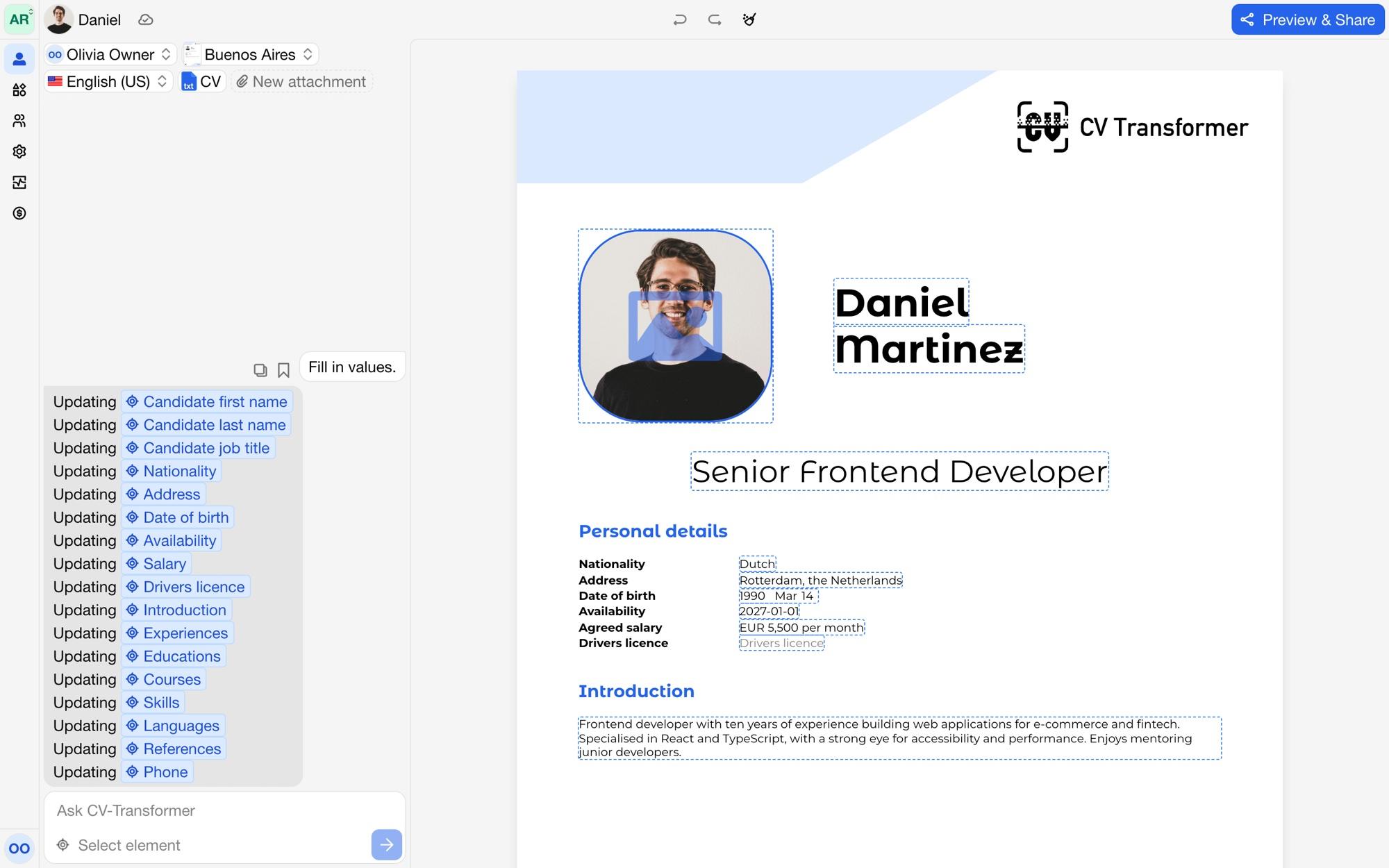
Layout
The editor has two tabs:
Editor: the layout's fields as a form, to fill in and correct by hand.
Preview: the proposal as it will look.
The sidebar holds the AI prompt and its history, and the candidate's settings and attachments.
Choosing a layout
Choose the candidate's layout in the sidebar. A candidate without a layout shows Select a layout: pick one of your layouts, start From scratch, or Pick from layout library. Switching layouts keeps the candidate's attachments; ask the AI to fill in the new layout from them.
Attachments
Attachments are the files CV-Transformer reads: a CV, but also a vacancy, a cover letter or notes. Under New attachment, choose:
Upload file, or drop a file on the editor.
Upload from URL: reads the text of a public web page, such as a portfolio.
Manually enter text: paste or type text, such as notes from an interview.
Select from your ATS: a file already stored with the candidate in your ATS.
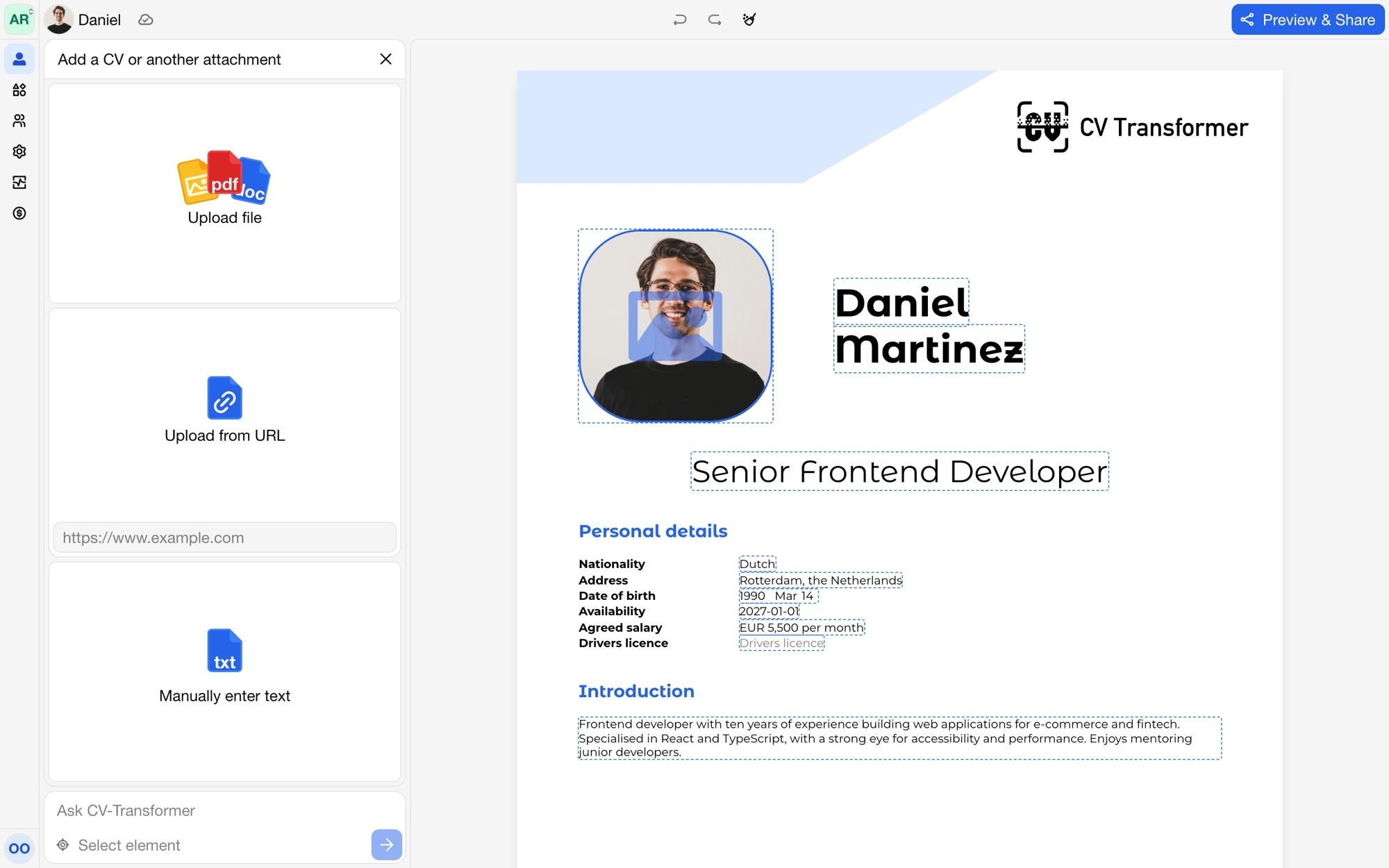
Open an attachment to see the text CV-Transformer read from it. For a scanned PDF without text, open its menu and choose Extract text using OCR. Images, such as a photo for the CV, can be cropped before they are used.
Filling in by hand
In the Editor tab, every field of the layout is an input: text, dates (with Present for ongoing periods), lists and images. Fields show when they have a minimum or maximum length or number of items. Changes save automatically.
Clear values empties every field, for a fresh start from the attachments.
Candidate settings
In the sidebar you also set:
Contact: the colleague responsible for the candidate. The proposal can show them as its author (see Proposal reactions).
Language: the language of the proposal, from the languages the layout has.
Layout: see above.
Versions
In the editor inside Salesforce, Bullhorn or Carerix, a candidate can have several versions, such as one proposal per vacancy. Click the candidate's name in the header and choose New version to create one, or pick a version to switch to it. Each version is a candidate of its own, linked to the same ATS record, and uses one credit.
Other actions
The menu next to the candidate's name in the header has Duplicate candidate and Delete candidate, and a link to edit the candidate's layout if you may edit layouts. Share opens the sharing options.