Bullhorn
阅读需 2 分钟
With the Bullhorn integration, you can sync candidates between Bullhorn and CV-Transformer and format CVs from within Bullhorn.
1. Activation
Bullhorn Support needs to activate the integration. Contact your Bullhorn support contact and ask them to make CV-Transformer selectable in the Partner Name field for custom tabs. They may also take some of the steps below for you.
2. Connecting Bullhorn
Ask Bullhorn to create a new API user to act as the service user, with an email address like
cv-transformer@your-company.com. It needs permission to read users, and to read and manage candidates and their attachments.Log out of Bullhorn. If you stay logged in, the integration is linked to your personal account, which can cause permission problems later.
In CV-Transformer, open the organization you want to connect and go to Settings → Integrations.
Select Bullhorn and click Connect.
Sign in with the service user you just created.
3. Linking users
Link each CV-Transformer user to their Bullhorn user, so candidates created in CV-Transformer get the right owner in Bullhorn, and candidates created in Bullhorn get the right contact in CV-Transformer.
In CV-Transformer, go to Settings → Integrations.
Select the Bullhorn user for each CV-Transformer user.
Users who are in Bullhorn but not in CV-Transformer can be invited under Team → Member. Users who are only in CV-Transformer need to be added to Bullhorn first.
4. Custom tab
To show CV-Transformer on candidates in Bullhorn, add a custom tab:
In Bullhorn, go to Menu → Admin → View Layout.
For Field Map Entity, select Candidate.
Go to Custom tabs and click Add new.
Fill in these values:
Name:
CV-TransformerEnabled: on
URL:
https://www.cv-transformer.com/bullhorn-candidatePartner Name:
CV-TransformerUser Types: every user type that should have access to CV-Transformer
If CV-Transformer isn't in the Partner Name list, contact Bullhorn support. Only they can add it.
Using the integration
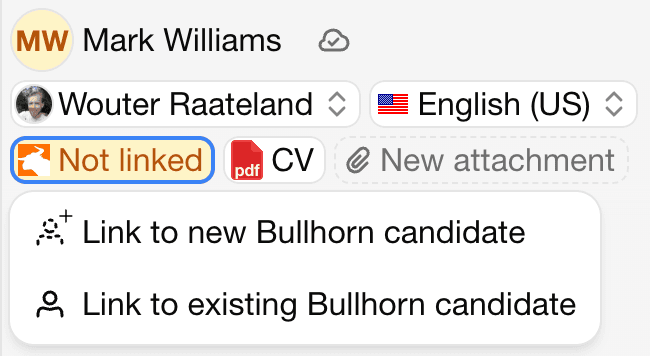
Linked candidates
When a CV-Transformer candidate is linked to a Bullhorn candidate, the data in Bullhorn becomes available in CV-Transformer. The AI uses it to fill the CV more accurately, and layouts can show Bullhorn fields directly.
When a candidate created in CV-Transformer is linked to a new Bullhorn candidate, CV-Transformer reads the uploaded CV and fills in part of the candidate's data in Bullhorn.
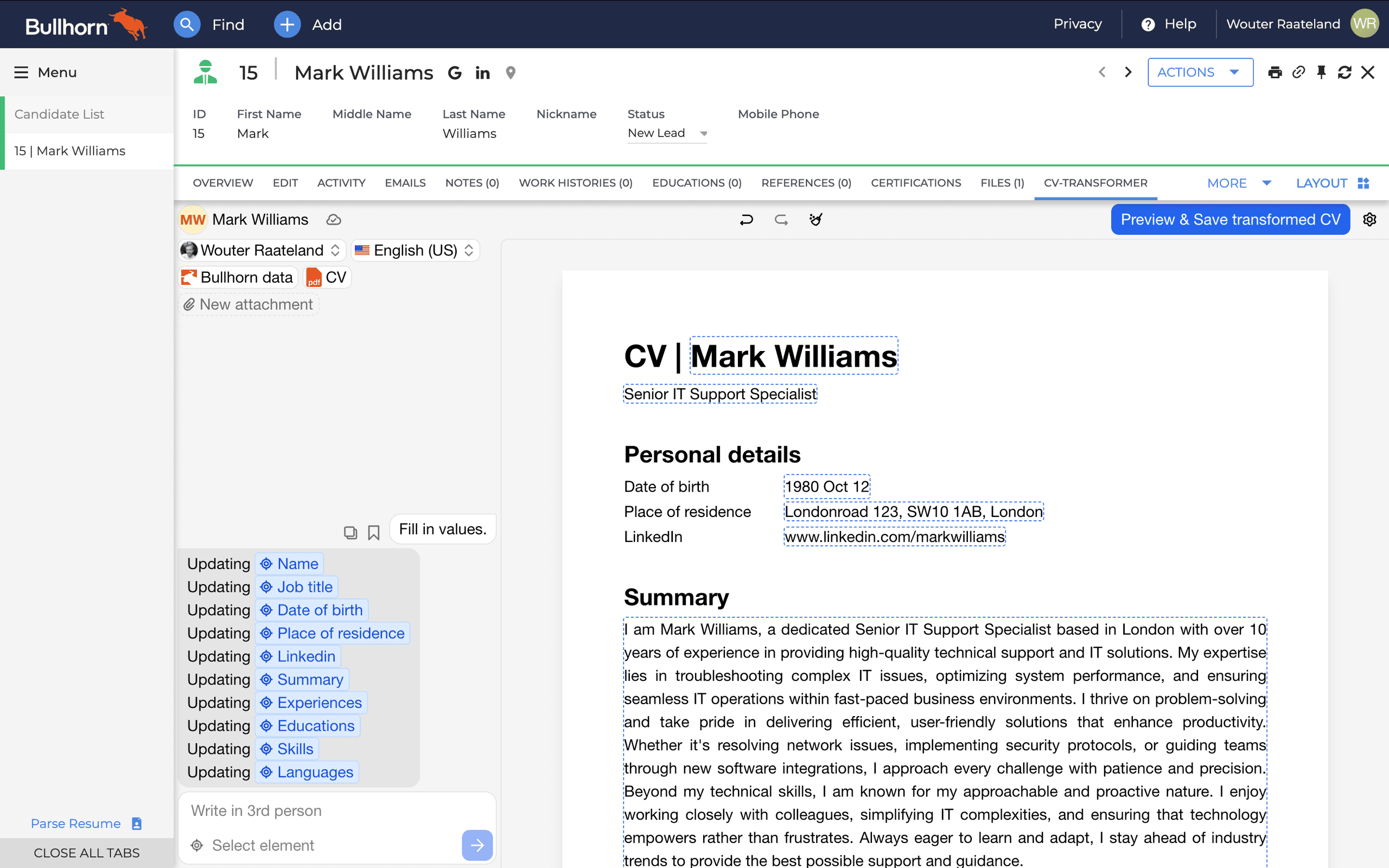
The CV-Transformer tab in Bullhorn
Each candidate in Bullhorn has a CV-Transformer tab, where you can edit the candidate's CV without leaving Bullhorn.
Under Preview & Save, choose Save to Bullhorn to add the formatted CV as an attachment to the Bullhorn candidate.
Importing candidates from Bullhorn
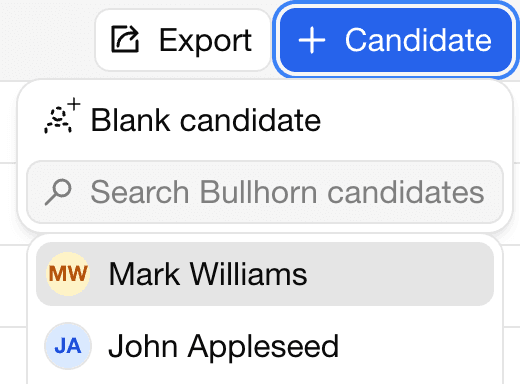
In CV-Transformer, the Candidate button can also create a candidate from an existing Bullhorn candidate.