Bullhorn
With the Bullhorn - CV-Transformer integration, you can sync your candidates between the two platforms and format CVs right from within Bullhorn.
1. Activation
The CV-Transformer Bullhorn integration needs to be activated by Bullhorn Support. Please reach out to your support contact at Bullhorn. To be sure, explicitly state that CV-Transformer needs to be selectable in the Partner Name field for Custom Tabs. They might already perform some of the steps listed below.
2. Installation
Request Bullhorn to create a new API user, this will be the "service user". Use an email address like cv-transformer@your-company.com Ensure it has at least permission to read users, and to read and manage candidates and their attachments.
Temporarily, log out of Bullhorn. If you stay logged in, the Bullhorn integration will be linked to your personal account. This might give permission problems later on.
In CV-Transformer, go to the organization you want to connect, Then go to "Settings" > "Integrations"
Select "Bullhorn" and click "Connect"
Now follow the oAuth flow using the service user you just created.
3. Linking users
Before using the integration, make sure that all users are connected between the two platforms. This way candidates created in CV-Transformer will have the correct "owner" set in Bullhorn, and candidates created in Bullhorn will have the correct "contact" set in CV-Transformer.
To connect users:
In CV-Transformer, go to "Settings" > "Integrations"
Map each CV-Transformer user to a Bullhorn user
If some users are registered in Bullhorn, but not in CV-Transformer, consider inviting them to CV-Transformer. You can do this within CV-Transformer by going to "Team", clicking "+Member" and filling in their details.
Vice versa, If some users are registered in CV-Transformer, but not in Bullhorn, consider inviting them to Bullhorn.
4. Custom tab
To embed CV-Transformer into Bullhorn, you'll need to add a custom tab in Bullhorn:
In Bullhorn, go to "Menu" > Admin > View Layout
For "Field Map Entity", select "Candidate"
Go to "Custom tabs" and click "Add new"
Fill in the following values: Name:
CV-TransformerEnabled: ✓ URL:https://www.cv-transformer.com/bullhorn-candidatePartner Name:CV-TransformerUser Types: Select all user types that should have access to CV-Transformer
If CV-Transformer (or similar) does not appear in the partner name list, please reach out to your Bullhorn support contact. Only they can add CV-Transformer to the list.
5. Usage
With the integration completed, CV-Transformer candidates can now be linked to Bullhorn candidates and a couple of new actions become available.
5.1 Linked candidates
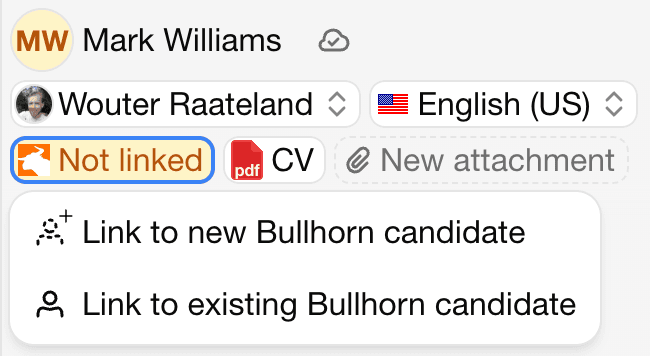
By linking a CV-Transformer with a existing Bullhorn candidate, the data already entered in Bullhorn becomes available in CV-Transformer. This can be used by our AI, to fill in the formatted CV more accurately, or we can even include the Bullhorn data directly in a CV layout, so that you have less to fill in.
If the candidate was created in CV-Transformer and then linked to a new Bullhorn candidate, CV-Transformer parses the uploaded CV and partially pre-fills the candidate's data in Bullhorn.
5.1 Bullhorn CV-Transformer tab
On each candidate detail page in Bullhorn a new tab "CV-Transformer" is now available. From this tab, you can edit the candidate's CV directly from within Bullhorn.
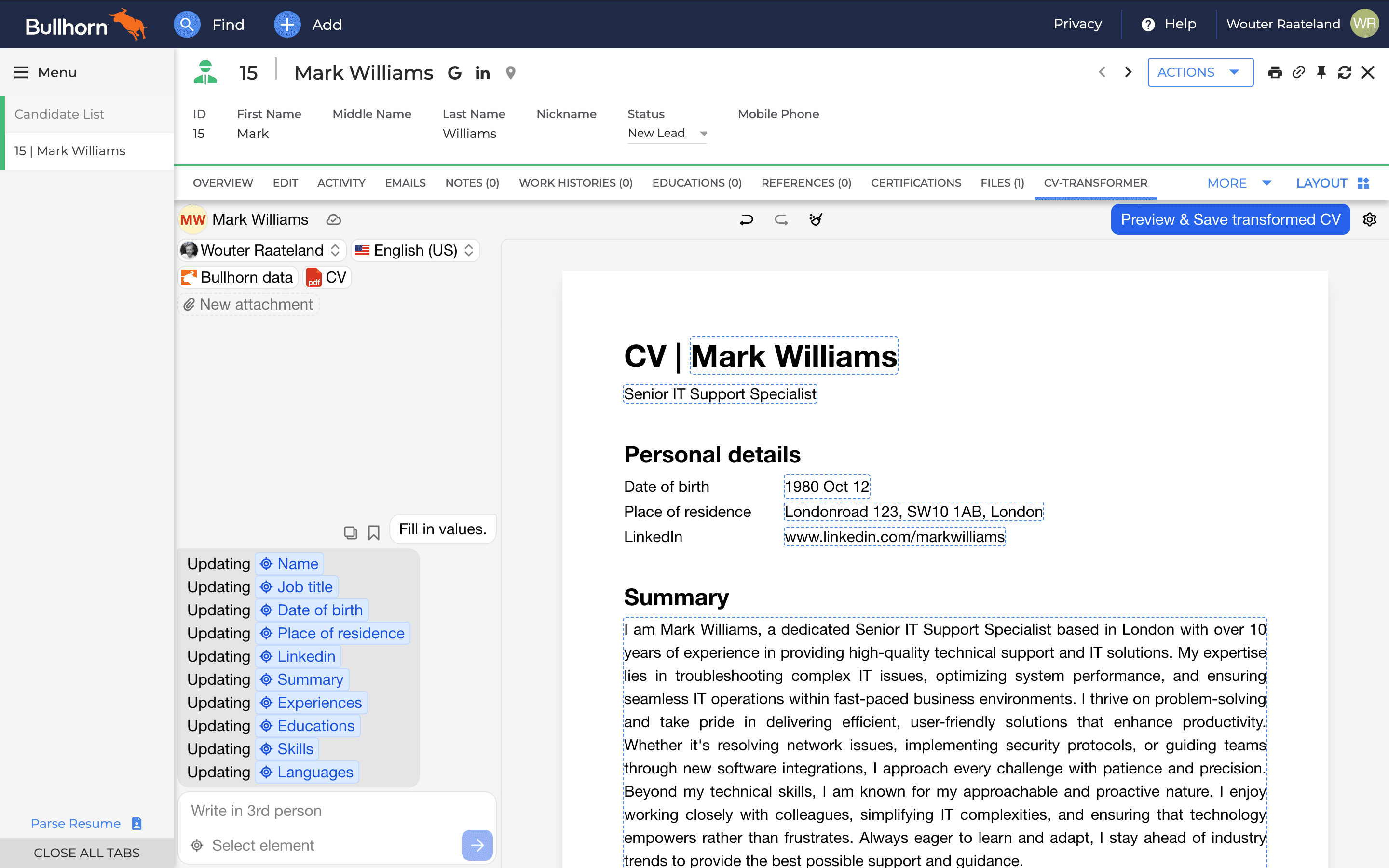
By clicking "Preview & Save", now has an additional option "Save to Bullhorn". This adds the formatted CV as an attachment on the Bullhorn candidate. So you can use it for communication from within Bullhorn
5.2 CV-Transformer stand-alone
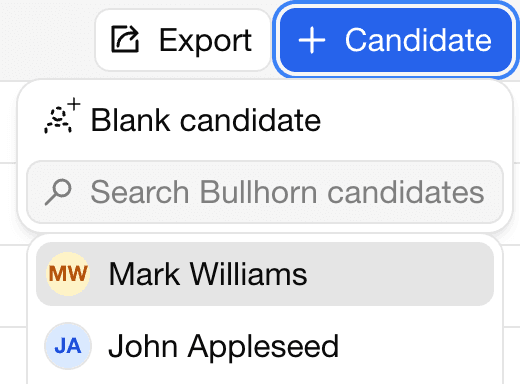
Previously, the + Candidate button only allowed creating blank candidates. Now you can create a CV-Transformer candidate based on an existing Bullhorn candidate as well.