Styling
1 min lesing
Make a layout match your branding in the Design tab of the layout editor: design tokens, fonts, images and custom CSS.
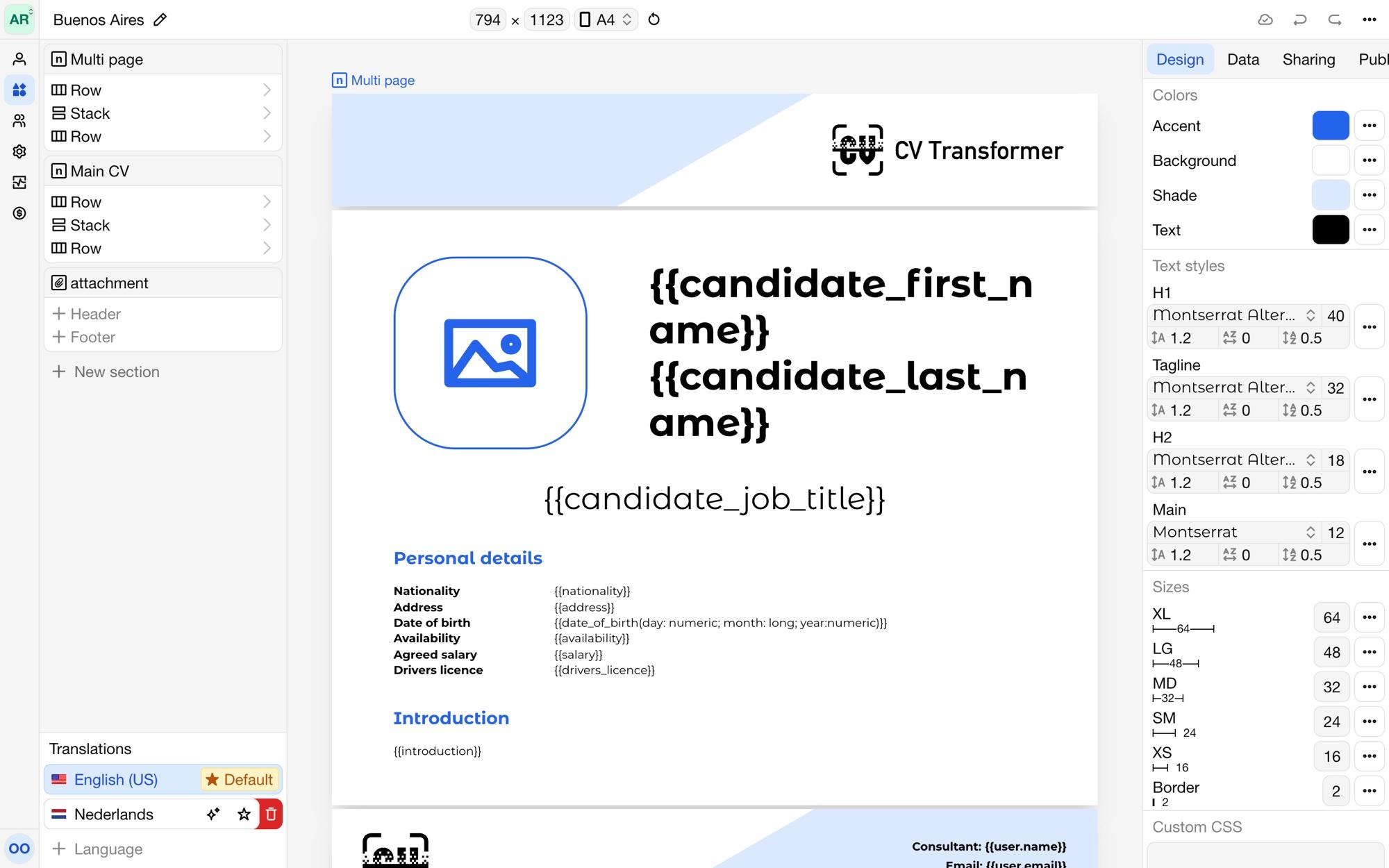
Design tokens
Design tokens are named values you reuse throughout the layout, so a change in one place applies everywhere. There are three kinds:
Colors, such as
PrimaryandAccent.Text styles: a font with its size, line height, letter spacing and paragraph spacing, such as
HeadingandBody.Sizes, such as a standard spacing.
Click New token to add one. In the Element tab, pick a token instead of a value for a color, font or size. To change one element only, choose Detach from token. A token's menu has Apply to all matching values, which links every element with the token's value to the token, and options to rename or delete it.
Name tokens after their purpose, not their value: Primary, not Blue. Then the layout stays clear when the colors change.
The Default font is used for text without a text style.
Fonts
Choose any Google Font, or Upload your own font file under Fonts. Uploaded fonts can be renamed and deleted.
Images
Upload images, such as your logo or a background, under Images. Use them in image elements, or as the background of any element.
Custom CSS
For styling the editor doesn't offer, add Custom CSS. It applies to the PDF and the web version, not to Word documents.